Showing posts with label SQL Server. Show all posts

Sunday, February 24, 2013

Enabling SQL Server Service Broker

Below is the common script we used to enable the Service Broker in SQL Server 2008.

ALTER DATABASE <DatabaseName> SET ENABLE_BROKER;

Example:


ALTER DATABASE Northwind SET ENABLE_BROKER;

If you feel your database has an outstanding open connection, you have to clear it first before running the script. For you to terminate all connection, you have to set the current database to be single-user and call the rollback keyword to terminate it all. After executing the script, set back the database to be a multi-user database.

Example script:

ALTER DATABASE Northwind SET SINGLE_USER WITH ROLLBACK IMMEDIATE;
GO
ALTER DATABASE Northwind SET ENABLE_BROKER;
GO
ALTER DATABASE Northwind SET MULTI_USER;
GO

Microsoft Documentation: Please visit this link for more information about SQL Server Service Broker.

Sunday, February 10, 2013

Querying Database Objects in SQL Server

The SQL Server contains a built-in schema called [sys] which can be used to query all the server objects created on the current database. This schema provides all the information used by each object of the database such as indexes, columns/fields, tables and views.

This is commonly used by other developer to actually developed an auto generator tool for their architecture.

For Microsoft documentation, please visit this link.

See below how to query the SQL Server Objects from the SQL Server.

Querying Objects

Inside the [sys] schema, if your SQL Server has intellisense, you can see all the schema definition objects if you put a dot after [sys] keyword. See below the screenshot.


You can select what schema object you may query for. We can use a default SELECT query to do a query.

Let say for example, we can query the tables, views, stored procedures and functions with the use of sys.objects catalog.

Querying Tables

We can use the
sys.objects catalog to query the list of tables from the database. See sample code below.

SELECT object_id
      , name
      , type
      , type_desc
      , create_date
      , modify_date
FROM sys.objects
WHERE type = 'u'
ORDER BY name;

Type 'U' defined the object as the USER_TABLE. If we want to query the custom stored procedures, then we can filter the type 'P'.

Querying Fields

We can use the sys.columns catalog to query all the columns from the database. After querying the columns, we can use the object_id field to determine what table it is belong to. See sample below.

SELECT object_id
      , name
      , column_id
      , max_length
      , user_type_id
      , system_type_id
FROM sys.columns;

Joining the table and only querying the custom table columns.

SELECT o.object_id

      , o.name as tablename

      , c.name as columnname
      , c.column_id
      , c.max_length
      , c.user_type_id
      , c.system_type_id
FROM sys.columns c
INNER JOIN sys.objects o ON o.object_id = c.object_id
WHERE o.type = 'U'
ORDER BY o.name, c.name;

Querying Indexes


Same with the columns, we can use the sys.indexes to query the list of indexes under one table.  See our sample below.

SELECT i.object_id
      , o.name as tablename
      , i.name
      , i.index_id
      , i.type
      , i.type_desc
      , i.is_unique
      , i.is_primary_key
FROM sys.indexes i
INNER JOIN sys.objects o ON o.object_id = i.object_id
WHERE o.type = 'u'
ORDER BY o.name;

Querying the indexed columns by table can be filtered using the sys.index_columns. See below.

SELECT i.object_id
      , o.name as tablename
      , c.name as columnname
      , i.index_id
      , i.index_column_id
      , i.column_id
FROM sys.index_columns i
INNER JOIN sys.objects o ON o.object_id = i.object_id
INNER JOIN sys.columns c ON c.object_id = o.object_id AND c.column_id = i.column_id
WHERE o.type = 'u'
ORDER BY o.name;

Base in your requirements, you can expand and filter more specific objects inside [sys] schema.

Saturday, February 2, 2013

Execute SQL Server Scripts in C#

With this tutorial we will guide you how to execute SQL Server scripts from C#.Net. This topic is more about SMO or SQL Server Management Objects.

For your reference regarding SMO, please visit Microsoft documentation.

What is SQL Server Management Object?

The SQL Server Management Object is a set of API developed by Microsoft so that any object manipulations in SQL Server can also be done in the client. This allow other developer to develop more a dynamic Query or Class generator architecture.

Let us start with the set of procedure below.

First, in your C# project, add a reference to the list of DLL below.
  • Microsoft.SqlServer.Management.Sdk.Sfc
  • Microsoft.SqlServer.Smo
  • Microsoft.SqlServer.SmoExtended
  • Microsoft.SqlServer.SqlEnum
Folder Location: C:\Program Files\Microsoft SQL Server\100\SDK\Assemblies\

We will most likely only use 2 binary there (just add other for your future development).

For you to make your SQL scripts runnable in the client, you should test it first in the SQL Management Studio whether there are no syntax error existed. If you feel that the script is right then you're ready to go with the client manipulation.

Stored Procedure

Suppose you have a database named Northwind and you have a table named User (userid, name, email, createddate); then we will create a sample stored procedure for that table.

With our sample table User, we will create a script to get the current user based on the UserID parameter. See below our sample script.

GO
SET ANSI_NULLS ON
GO
SET QUOTED_IDENTIFIER ON
GO
CREATE PROCEDURE [dbo].[GetUser_sp]
(
      @UserID BIGINT
)
AS
BEGIN
      SELECT [UserID]
      , [Name]
      , [Email]
      , [CreatedDate]
      FROM [dbo].[User]
      WHERE ([UserID] = @UserID);
END

Ensure that the script above is running successfully in the SQL Management Studio. If you found any problem or error (script problem or syntax error) then fix it before executing it in the client.

.NET SMO Execution

We will now guide you how to execute it in the client. Now, go back to our C# project solution and do some code snippet.

First add a reference to the namespaces Microsoft.SqlServer.Management.Smo and Microsoft.SqlServer.Management.Common to your class above. See below.

using Microsoft.SqlServer.Management.Smo;
using Microsoft.SqlServer.Management.Common;

Then, create a SqlConnection object that connects to your database. See below.

using (var connection = new SqlConnection(this.ConnectionString))
{
   
}

Inside the using block, create a Server and Database object. See below our codes.

using (var connection = new SqlConnection(this.ConnectionString))
{
    var server = new Server(new ServerConnection(connection));
    var database = server.Databases[connection.Database];
}

In the Server object ConnectionContext property, we need to set the property AutoDisconnectMode to NoAutoDisconnect for it to not disconnect when there are existing pooling operation in the database.

After that, call the Connect method to connect on the server and then call the ExecuteNonQuery method passing the string of our SQL Scripts. Please make sure to disconnect the connection once executed.

Now, our new code is below.

using (var connection = new SqlConnection(this.ConnectionString))
{
    var server = new Server(new ServerConnection(connection));
    var database = server.Databases[connection.Database];
    server.ConnectionContext.AutoDisconnectMode = AutoDisconnectMode.NoAutoDisconnect;
    server.ConnectionContext.Connect();
    server.ConnectionContext.ExecuteNonQuery("SQL SCRIPTS HERE");
    server.ConnectionContext.Disconnect();
}

Note: If you are running the 4.0 version of .NET and if you however encountered an exception regarding version compatibility. You need to support the 2.0 version of .NET during start up. To do this, you have to modify some settings from your config file. See below.

<?xml version="1.0"?>
<configuration>
  <startup useLegacyV2RuntimeActivationPolicy="true">
    <supportedRuntime version="v4.0" sku=".NETFramework,Version=v4.0"/>
  </startup>
</configuration>

The useLegacyV2RuntimeActivationPolicy will do the trick.

That's all. Have a happy coding.

Sunday, January 27, 2013

Uninstall SQL Server Instance

How to uninstall an existing installed SQL Server Instance?

This blog will guide you how to uninstall an existing installed SQL Server Instance. If you have multiple installed instance of SQL Server in your local PC then this blog address your problem. Please follow the steps provided below.

First and foremost, go to Control Panel and select the Microsoft SQL Server 2008 (64 bit) entry from the list. Once selected, click the Uninstall/Change menu from the panel. See the image below.


After clicking of the Uninstall/Change button, the SQL Server Uninstallation Options will be displayed. From there, please select the Remove link. Please see the image below.


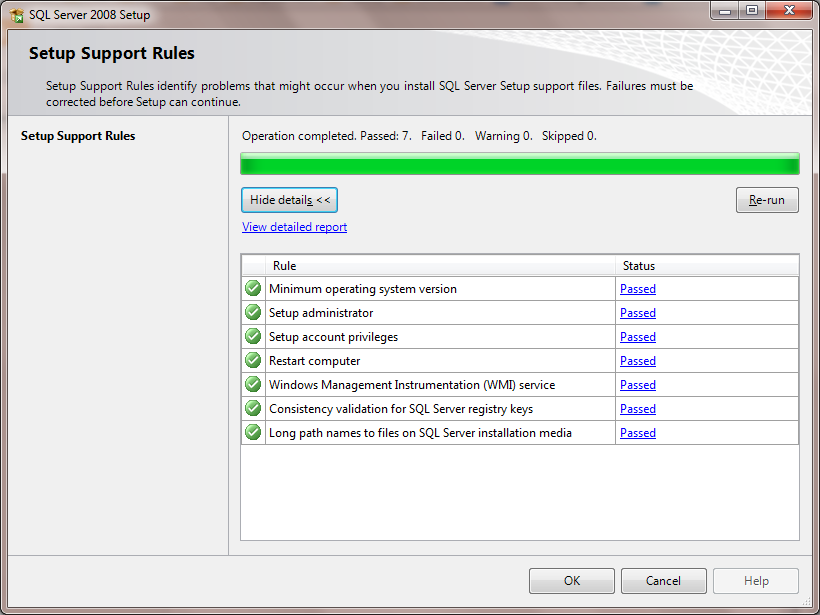
The Setup Support Rules will then check the system requirements. Ensure that all Rule is passed otherwise you need to fix it (and the un-installation cannot continue). See image below.


Just click the OK button if you see all the entries are pass.

In the next window, select the SQL Server Instance you wish to remove or modify. In our case, we are removing our existing installed Express edition instance. Just simply select the proper entry in the 'Instance to remove from' field.

See the image below.


Once you select the proper entry, just click the Next button to proceed. The next window will show you what features are you going to remove from the SQL Server instance. Our advice is to select all features installed the current selected SQL Server instance. See the image below.


Just click the Select All button to select all entries then click the Next button. After that the next window will display the removal rules. See the image below.


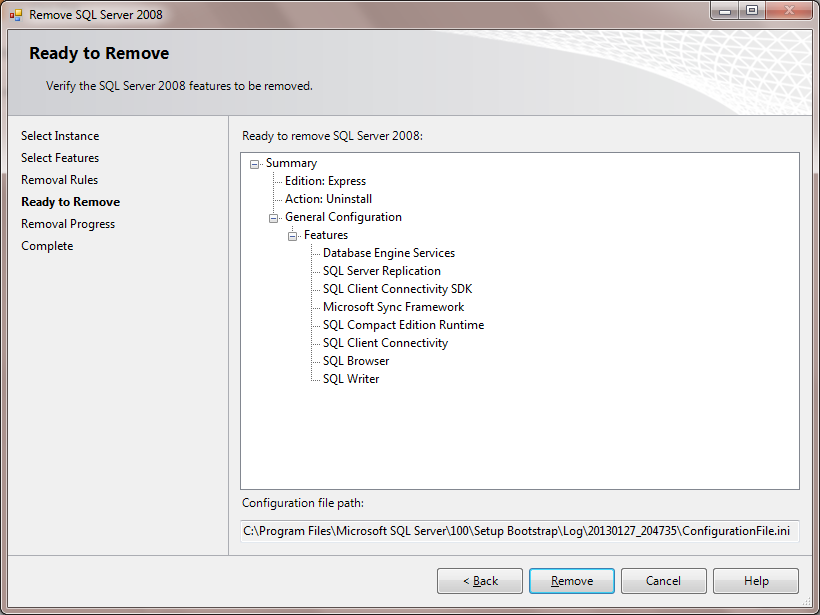
Click the Next button. In the next window the Ready to Remove dialog will be displayed to confirm to you the list of features to remove. See the image below.


If you are sure to remove the features just click the Remove button, otherwise click Back button to reset the features to remove. In our case, we will just click the Remove button.

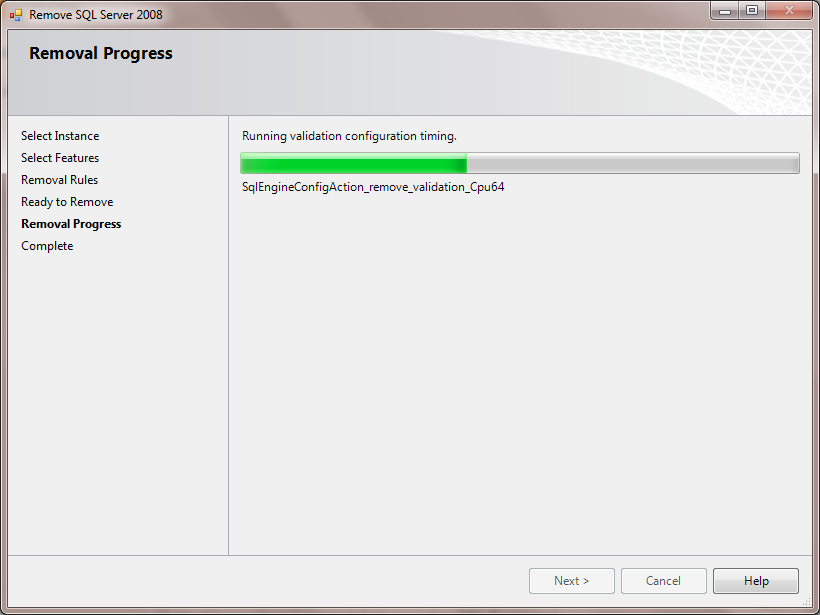
The removal progress will be displayed in the next window. See the image below.


Once completed, just click the Next button and in the next window it will only display the link to the log file for your un-installation report status. Just click the Close button to close the window. See image below.


Other Solution

Alternative solution from Microsoft can be found here.

Note: You need to restart the PC after un-installing the SQL Server instance to have effect in the system. So better do follow the process by restarting your PC to avoid conflicts.

You just learned how to un-installed an existing SQL Server instance.

Saturday, January 26, 2013

Creating a Database and Tables in SQL Server

This blog will guide you how to create a database and tables in SQL Server. The audience of this blog are those who don't have enough experience in SQL Server yet. For those who are very keen in using SQL Server, please skip this blog.

If you have your SQL Server installed in your PC then we are ready to go. Otherwise, please visit the How to Install SQL Server 2008 blog to guide you how to install it.

Creating a Database

Now we are expecting that you already installed SQL Server 2008 Express Edition in your PC. First, you have to open the Microsoft SQL Server Management Studio by clicking the icon from your Desktop. If it has not placed in the Desktop, then please click the Start button All Programs->Microsoft SQL Server 2008->SQL Server Management Studio.

The SQL Server Management Studio looks like below.


By default, it will automatically display the Object Explorer. If you haven't seen the Object Explorer then please go to menu View->Object Explorer or press F8.

After that, click the Connect label located in the Object Explorer to connect in the available SQL Server instance you had created during the installation. See the image below the Connect to Server window.


There you see the Server type, Server name and Authentication type of connection. Usually if you're working locally you have to place the (local) or dot in the Server name. The server type usually Database Engine. If you're working locally or if you're working with windows authenticated environment, then leave the Authentication value to Windows Authentication. However, if you know you're connecting in the secure database you have to provide the authentication process credentials. In the Authentication field select the SQL Server Authentication and enter the Username and Password credential. Click Connect button and wait until the Object Explorer is filled with a new database connection instance.

Select the new database instance and expand it. Select the Databases and select New Database. See below the image.


After clicking the New Database menu, you will see the create database dialog. See below.


In the database name, please type the name of the database you wish to create. The most common name for the database is the actual name of you application (but it is up to you). If you wish to create an advance database, you can modify the Options (type of connection and its properties) and Filegroups to define what schema this database are part of. For your convenient let's just start in the basic functionality.

If you're done with your database name, click OK button. You will notice that the Object Explorer databases node has been filled with your newly created database. See below the image.


And that's all. You just learn how to create a SQL Database.

Creating a Table

If you follow our tutorial above weI created our own database named CodesDirectory. From there, we will start our process by expanding the CodesDirectory database and right-click from the Tables folder. Select New Table menu and it will show you the table designer. From that designer please follow our image below.


Once you're done with your designing, please save the table by pressing the Ctrl+S keys. It will show you a new dialog that prompts the table name. In our sample, we created it as User. See image below.


Now you will notice again that the CodesDirectory database Tables node will have a new entry named User. That is just the table we just created named User. In SQL Server, user has an option to create a database table by user interface or by SQL Text. If you wish to create a table by SQL Text, then you have to learn more in DDL (Data Definition Language) stuff.

Sample below is the way how to retrieve the corresponding SQL Text when creating a table.

Scripting table.


You can choose other option in the Script Table as menu if you wish. But in our case, we just displayed how the User table has been created via SQL Text. Below is the actual script how to create a User table.

USE [CodesDirectory]
GO

/****** Object:  Table [dbo].[User]    Script Date: 01/27/2013 13:49:54 ******/
SET ANSI_NULLS ON
GO

SET QUOTED_IDENTIFIER ON
GO

CREATE TABLE [dbo].[User](
      [UserID] [uniqueidentifier] NOT NULL,
      [Username] [nvarchar](32) NOT NULL,
      [Firstname] [nvarchar](32) NOT NULL,
      [Lastname] [nvarchar](32) NOT NULL,
      [Birthdate] [datetime] NOT NULL,
      [SerialNumber] [nvarchar](24) NULL,
      [CreatedDate] [datetime] NOT NULL
) ON [PRIMARY]

GO

ALTER TABLE [dbo].[User] ADD  CONSTRAINT [DF_User_UserID]  DEFAULT (newid()) FOR [UserID]
GO

ALTER TABLE [dbo].[User] ADD  CONSTRAINT [DF_User_CreatedDate]  DEFAULT (getutcdate()) FOR [CreatedDate]
GO

If you wish to create a database by SQL Text, you need to study more the DML vs DDL. The DML or Data Manipulation Language is an SQL Text in SQL Server that is being used for data manipulation operation. Basic keyword includes SELECT, UPDATE and DELETE. The DDL or Data Definition Language is the administrator task that manipulates around database schema. Basic keywords are CREATE, ALTER and DROP.